The Training Sources section allows you to provide website pages that the AI Assistant will use as knowledge sources. By adding links from your website, the assistant can crawl those pages and use the content to answer user questions more accurately.
To set up the training sources, you can either add custom links or use the Add Links option to crawl pages from your website and select the ones you want to include.
Crawling Website Pages– Add links #
After clicking Add Links, you will see the Add website pages to AI Assistant modal.
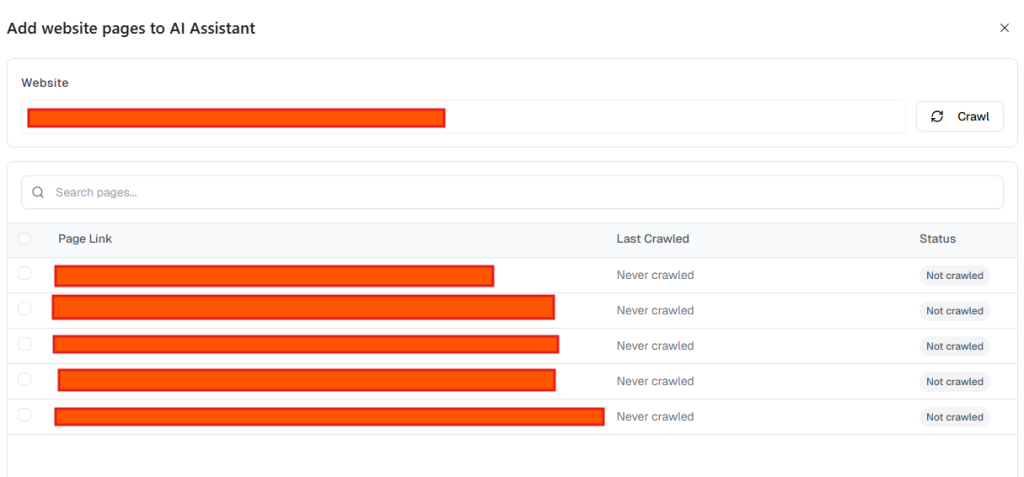
- Enter Website URL
By default, your site URL will be displayed, and this cannot be changed. - Click Crawl
Press the Crawl button to scan the website. The system will detect available pages. - Select Pages
A list of discovered pages will appear. Each page includes:- Page Link – the detected page URL
- Last Crawled – when the page was last scanned
- Status – whether the page has been crawled
- Choose Pages to Train the AI
Select the checkbox next to the pages you want to include. - Add Selected Pages
Click Add to include the selected pages in the assistant’s training sources.
Page Status Indicators #
- Not Crawled – The page has been discovered but not yet processed.
- Last Crawled – Shows the last time the page content was analyzed.
Training Source Limits #
- Each assistant can include up to 15 website links.
- The counter at the bottom of the modal shows how many pages are already added.
Tips for Better Training #
Update and re-crawl pages when the website content changes so the AI assistant stays up to date.
Add pages that contain important information about your business, services, or FAQs.
Avoid adding author pages, category pages, or empty template pages unless they contain useful content.
Removing Pages #
Click the Delete icon to remove a page from training.
Once removed, the AI will no longer reference that content.
2.2 Documents #
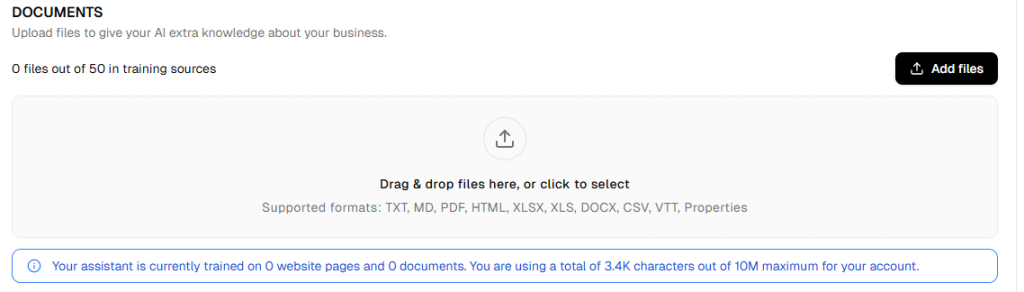
Upload additional files to enhance the assistant’s knowledge base.
Supported formats include:
- TXT
- MD
- HTML
- XLSX / XLS
- DOCX
- CSV
- VTT
- Properties
Upload via:
- Drag and drop
- Add Files button
Documents are indexed and included in training.