The Targeting & Display Triggers step allows you to control when, where, and to whom your widget appears. This helps you display the widget at the right moment and to the right audience.
Widget Triggers #
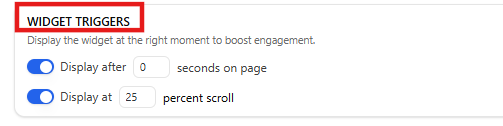
Widget triggers control when the widget appears on a page.
You can choose from the following options:
Display after
Shows the widget after a specified number of seconds once the page loads.
On scroll
Displays the widget after the visitor scrolls a specified percentage of the page.
These triggers help improve engagement without interrupting visitors immediately.
Page Targeting #

Page targeting allows you to control which pages or content types display the widget.
You can create rules such as:
- Homepage only
- Entire website except homepage
- All single posts
- All pages
- Specific pages
- Specific posts
- WooCommerce products (if WooCommerce is installed)
To configure targeting:
- Click Add rule
- Choose Show on or Don’t show on
- Select the page type or content option
Multiple rules can be added to refine widget visibility.
Date Scheduling #
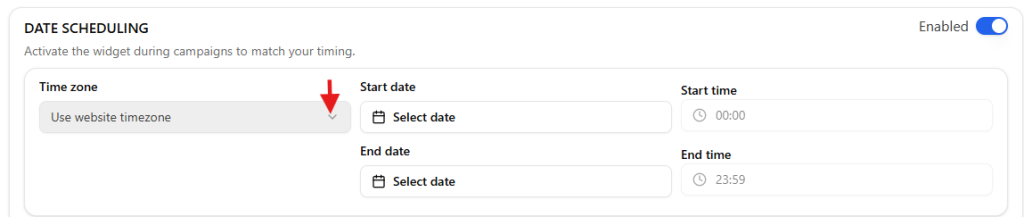
Date scheduling allows you to display the widget during specific campaigns or time periods.
You can configure:
- Start date
- End date
- Start time
- End time
- Time zone
This is useful for promotions, events, or limited-time announcements.
Day Scheduling #
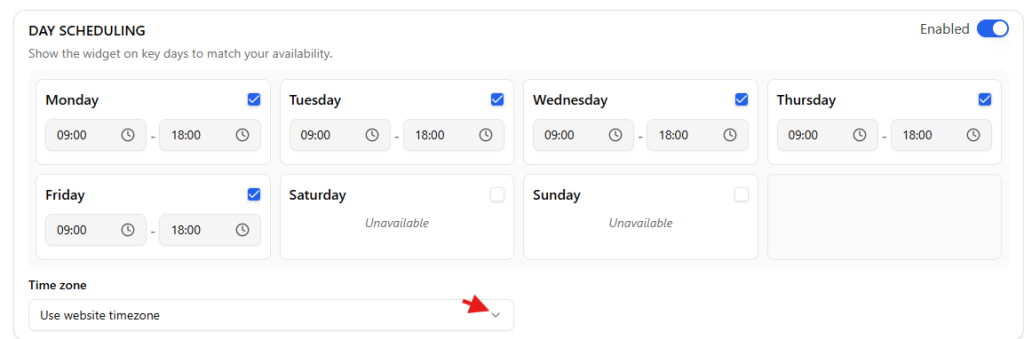
Day scheduling lets you control which days and hours the widget appears.
For each day, you can:
- Enable or disable the day
- Set start and end times
Example:
Show the widget only during business hours on weekdays.
Traffic Sources #

Traffic source targeting allows you to display the widget based on how visitors arrived at your site.
Available options include:
- Direct visits
- Social networks
- Search engines
- Google Ads
This helps personalize engagement based on visitor origin.
Geographic Targeting #

Geographic targeting allows the widget to appear only for visitors in specific locations.
You can configure:
- Country
- State
- Geo-location service
This is useful for region-specific offers, services, or campaigns.