The Lead Collection Page allows you to view and manage all leads collected through their AI assistant lead forms.
Once a lead form is created and enabled within the AI Assistant Settings, every submission made through that form will automatically be stored on the Lead Collection page. This provides a centralized place to track, review, and export all collected leads.
How Leads Are Collected #
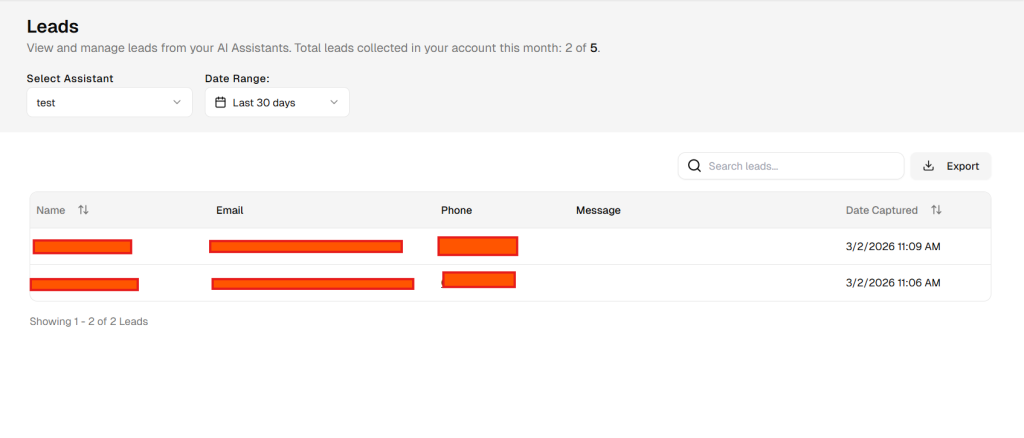
Leads are captured when visitors submit information through the lead form connected to an AI assistant. The type of data collected depends on the fields enabled during the lead form configuration.
For example, if the form is configured to collect a name, email, phone number, and message, those fields will appear in the Lead Collection table. If some fields were not enabled in the form settings, they will not appear for those leads.
Lead Data Displayed #
Each lead entry may include the following information, depending on the form configuration:
- Name – The name provided by the user.
- Email – The email address submitted in the form.
- Phone – The phone number entered by the user.
- Message – The message or inquiry submitted through the form.
- Date Captured – The exact date and time the lead was submitted.
Selecting an AI Assistant #
The Select Assistant dropdown allows users to choose which AI assistant’s leads they want to view.
If multiple AI assistants have been created, each assistant will have its own associated leads. Selecting a specific assistant filters the table to display only the leads collected through that assistant.
Filtering by Date Range #
Users can filter leads by selecting a Date Range.
For example:
- Last 7 days
- Last 30 days
- Custom date range
This allows you to view leads collected within a specific time period.
Searching Leads #
The Search Leads field allows you to quickly locate specific leads by searching for keywords such as:
- Name
- Message content
The results will update dynamically based on the search query.
Exporting Leads #
Users can export collected leads by clicking the Export button.
This downloads the lead data as a CSV file, which can be opened in spreadsheet software such as Excel or Google Sheets. Exporting allows users to:
- Perform additional analysis
- Maintain offline records