Skip to content
Siteleads Docs

Contact Widget Configuration

  • Understanding Contact Widgets
  • Creating a Contact Widget
  • Phone channel configuration
  • WhatsApp channel configuration
  • Email channel configuration
  • Messenger Channel Configuration
  • Instagram DM Channel Configuration
  • Instagram Page Channel Configuration
  • WeChat Channel Configuration
  • Snapchat Channel Configuration
  • Discord Channel Configuration
  • Telegram Channel Configuration
  • SMS Channel Configuration
  • TikTok Channel Configuration
  • X (Twitter) Channel Configuration
  • Google Maps Channel Configuration

Creating Channels & Widgets (AI Agent Setup)

  • Configuring an AI Agent
  • Understanding Channels
  • Creating a Channel Widget
  • Creating AI Agent Account
  • Targeting & Display Triggers
  • Visual Customization

AI Assitant Configuration

  • Creating AI Assistant
  • General Settings
  • Training Sources
  • Conversation Settings
  • Predefined Questions

Visual Customization

  • Mobile View Options 
  • Greeting settings
  • Attention effects
  • Desktop View Settings

Targetting and Display Rules

  • Widget Display Triggers
  • Page Targeting
  • Date Scheduling
  • Day Scheduling
  • Traffic Sources Targeting
  • Geographic Targeting

Leads, Messages and Analytics

  • The Leads Section
  • The Messages Section
  • The Analytics Section

Upgrade and license activation

  • The “My Account” section
  • How to activate the SiteLeads license
  • Free vs Pro Features

Miscellaneuous

  • System requirements
  • How to Install and Activate the Plugin
View Categories
  • Home
  • Miscellaneuous
  • How to Install and Activate the Plugin

How to Install and Activate the Plugin

< 1 min read

You can install the SiteLeads plugin directly from your WordPress dashboard or by uploading the plugin ZIP file.


🔹 Method 1: Install from the WordPress Dashboard #

  1. Log in to your WordPress Admin Dashboard
  2. Go to Plugins → Add New
  3. Search for SiteLeads
  4. Click Install Now
  5. Once installation is complete, click Activate

After activation, the SiteLeads menu will appear in your WordPress dashboard.


🔹 Method 2: Install by Uploading the Plugin (ZIP File) #

  1. Log in to your WordPress Admin Dashboard
  2. Navigate to Plugins → Add New
  3. Click Upload Plugin
  4. Choose the SiteLeads .zip file from your computer
  5. Click Install Now
  6. After installation, click Activate Plugin

Initial Setup & Dashboard Overview #
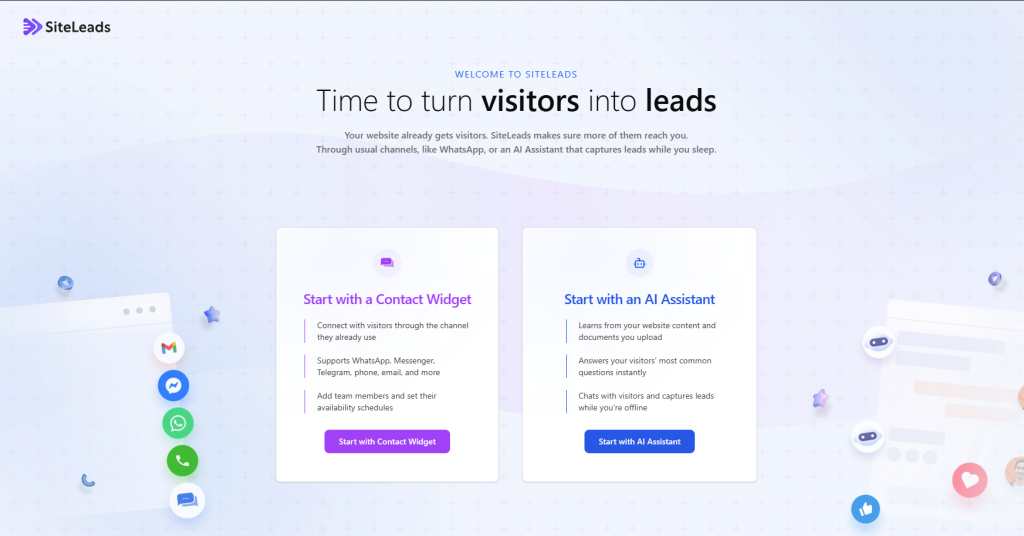
After activating the plugin, you’ll see the welcome screen that helps you choose how you’d like to get started. This initial setup step provides quick access to the two main SiteLeads features: Creating Channels and Creating AI Assistant.

Updated on March 17, 2026
System requirementsSystem requirements
Table of Contents
  • 🔹 Method 1: Install from the WordPress Dashboard
  • 🔹 Method 2: Install by Uploading the Plugin (ZIP File)
  • Initial Setup & Dashboard Overview

All rights reserved