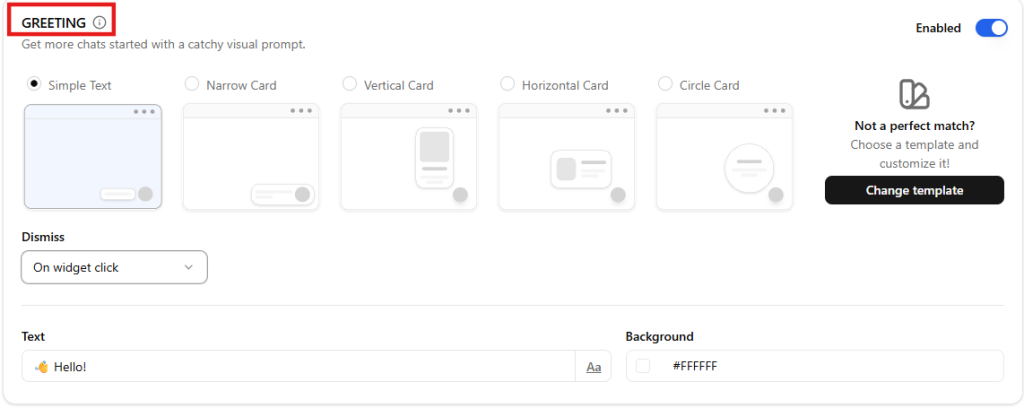
The Greeting feature allows you to display a short message next to the widget to encourage visitors to start a conversation. This visual prompt helps increase engagement by drawing attention to the widget.
You can enable or disable this feature using the Enable Greeting toggle.
Greeting styles #
You can choose how the greeting appears by selecting one of the available layouts:
Simple Text
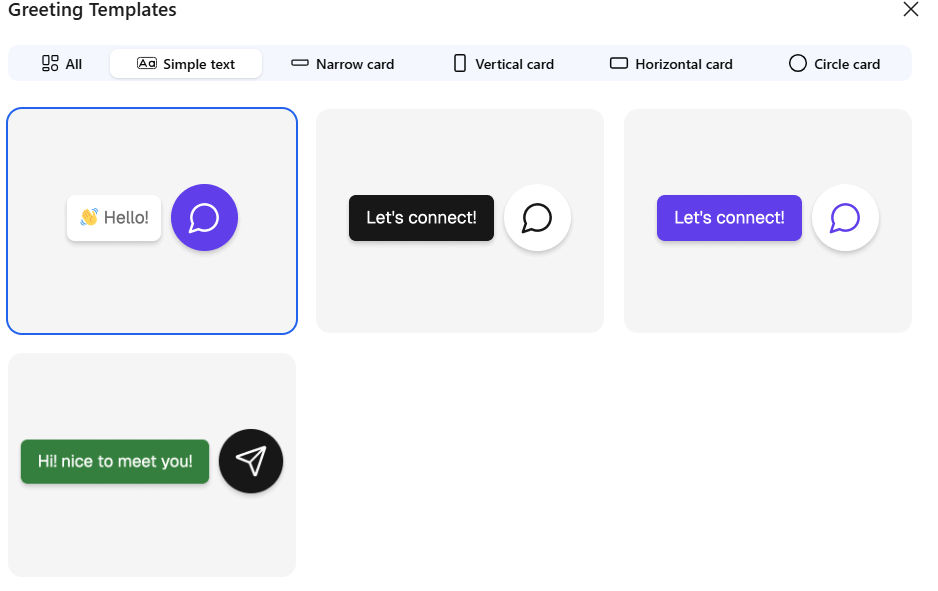
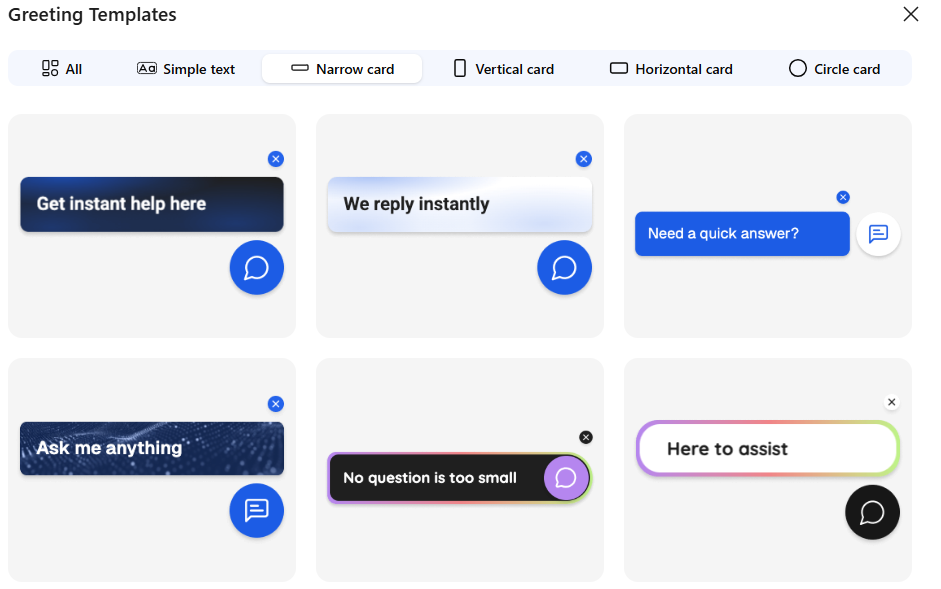
Narrow Card
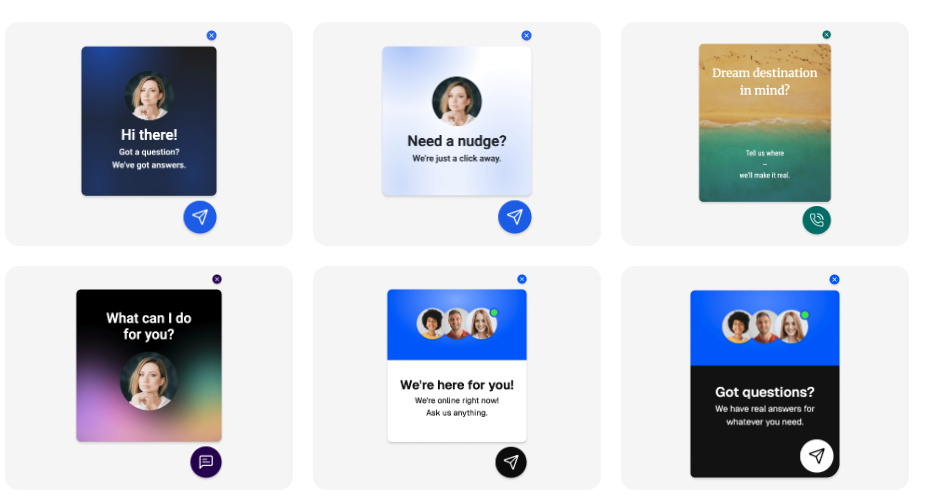
Vertical Card
Horizontal Card
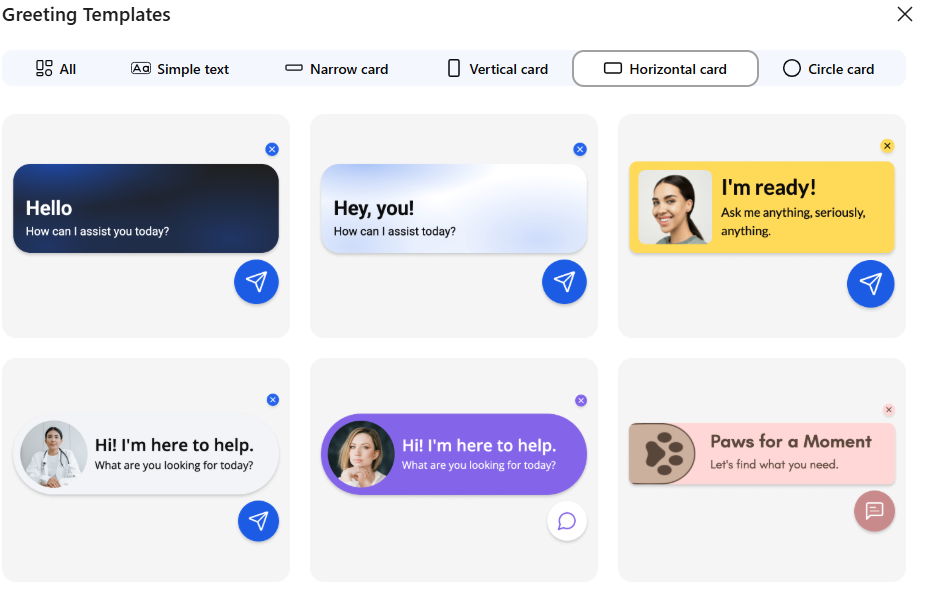
Circle Card
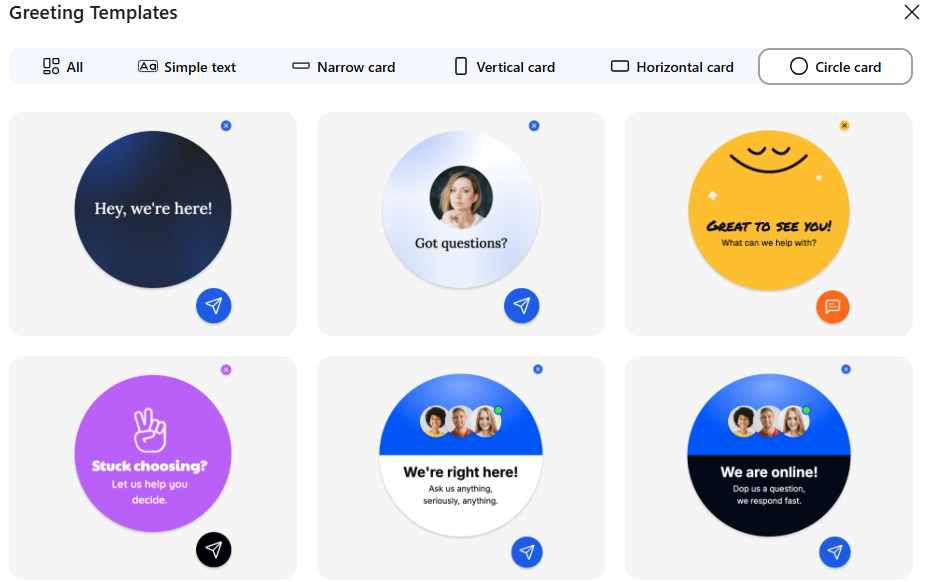
Each style changes how the greeting message is displayed alongside the widget.
Greeting message #

The Text field allows you to customize the greeting message shown to visitors.
Example: Hello! world
This message should be short, friendly, and inviting.
Background #

You can customize the greeting background color to match your site’s design.
Dismiss behavior #
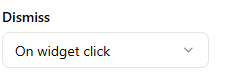
The Dismiss setting controls how the greeting disappears after being shown.
Options include:
On widget click
The greeting disappears when the visitor clicks the widget.
Disappear after X seconds
The greeting automatically hides after a set period of time.
Attention Effects #
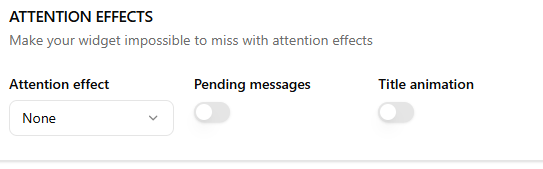
Attention effects help draw visitors’ attention to the widget.
The Attention Effects section helps make your widget more noticeable to visitors by adding subtle visual cues and notifications. These settings are designed to increase engagement without interrupting the browsing experience.
This setting allows you to apply an animation to the widget launcher to draw attention to it.
Available effects include:
- None
- Shockwave
- Waggle
- Shine
- Bounce
- Blink
- Pulse
- Spin
You can select the effect that best matches your site’s style. For most websites, subtle effects like Pulse or Shine work well.
Pending messages #
When enabled, the widget shows a notification indicator when there are unread or pending messages. This helps visitors notice that a response is available.
Title Animation #
The Title Animation feature helps notify visitors when a new message is received in the chat. When enabled, the browser tab title will automatically change to attract the user’s attention, especially if they have switched to another tab.
This feature is useful for ensuring visitors do not miss responses from your support team.
Enable / Disable Title Animation #
The Title Animation toggle allows you to turn this notification feature on or off.
- Enabled – The browser tab title will change when a new chat message arrives.
- Disabled – The browser tab title will remain unchanged.
Enabling this option helps bring users back to the chat if they are browsing another tab.
Page Title #
The Page Title field lets you define the text that will appear in the browser tab when a new message is received.
Example
You have a new message!
When a message arrives, the browser tab title will temporarily change to this text to alert the visitor.
Best Practices #
- Keep the message short and attention-grabbing.
- Use simple wording so users instantly understand the notification.
- Adding an emoji (like 📩 or 💬) can make the notification more noticeable.
Example alternatives
🔔 New chat notification
💬 New message from support
📩 You received a reply