Skip to content
Siteleads Docs

Contact Widget Configuration

  • Understanding Contact Widgets
  • Creating a Contact Widget
  • Phone channel configuration
  • WhatsApp channel configuration
  • Email channel configuration
  • Messenger Channel Configuration
  • Instagram DM Channel Configuration
  • Instagram Page Channel Configuration
  • WeChat Channel Configuration
  • Snapchat Channel Configuration
  • Discord Channel Configuration
  • Telegram Channel Configuration
  • SMS Channel Configuration
  • TikTok Channel Configuration
  • X (Twitter) Channel Configuration
  • Google Maps Channel Configuration

Creating Channels & Widgets (AI Agent Setup)

  • Configuring an AI Agent
  • Understanding Channels
  • Creating a Channel Widget
  • Creating AI Agent Account
  • Targeting & Display Triggers
  • Visual Customization

AI Assitant Configuration

  • Creating AI Assistant
  • General Settings
  • Training Sources
  • Conversation Settings
  • Predefined Questions

Visual Customization

  • Mobile View Options 
  • Greeting settings
  • Attention effects
  • Desktop View Settings

Targetting and Display Rules

  • Widget Display Triggers
  • Page Targeting
  • Date Scheduling
  • Day Scheduling
  • Traffic Sources Targeting
  • Geographic Targeting

Leads, Messages and Analytics

  • The Leads Section
  • The Messages Section
  • The Analytics Section

Upgrade and license activation

  • The “My Account” section
  • How to activate the SiteLeads license
  • Free vs Pro Features

Miscellaneuous

  • System requirements
  • How to Install and Activate the Plugin
View Categories
  • Home
  • Targetting and Display Rules
  • Day Scheduling

Day Scheduling

< 1 min read

Day scheduling allows you to control which days and hours your widget appears on your website. This helps you align the widget’s visibility with your availability or business hours.
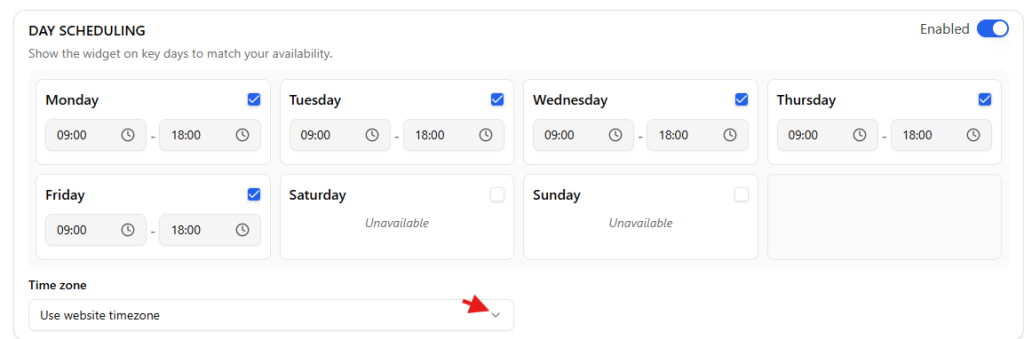
Day scheduling lets you control which days and hours the widget appears.

For each day, you can:

  • Enable or disable the day
  • Set start and end times

Example:
Show the widget only during business hours on weekdays.

Updated on March 20, 2026
Date SchedulingTraffic Sources Targeting

All rights reserved